Showing posts with label R12 Upgrade. Show all posts

Thursday, January 14, 2016

Configure Shared Appl Top in EBS R12 - Step by Step


Hi All ...

Here the step by step of configure Shared Appl Top  in EBS R12:

1.   Run adpreclone procedure in DB and APPL (on Main server):

·         On DB Tier:
        cd $ORACLE_HOME/appsutil/scripts/$CONTEXT_NAME
        perl adpreclone.pl dbTier
·         On APPL Tier:
         cd $INST_TOP/admin/scripts

         perl adpreclone.pl appsTier

2.   Stop APPL_TIER (on Main server)
3.   Add the F5 ip hosname.domain hostname to /etc/hosts on all servers.
4.   Connect the mount of the application tier to second appl server. 
5.   Add node (run the commands on second applserver ).
    cd $COMMON_TOP/clone/bin; (take a path from main appl node)
    perl adclonectx.pl addnode contextfile=<echo $CONTEXT_FILE from main node>
    *All servers need to be enabled
    perl <echo $AD_TOP/bin from main node >/adconfig.pl contextfile=<specify the path to the      new context file from previous step>
   Edit .bash_profile to point to new env files.
6.   Run AutoConfig in both nodes (main node need to be run as the last one).
7.   Edit Context file for 2 nodes

s_applcsf                            
Same on all nodes
s_fndreviverpiddir         
Same on all nodes
APPLDCP
ON
s_appltmp
Same on all nodes
s_temp
Same on all nodes
s_custom_file
Same is in main node
s_webentryhost 
F5 host
s_login_page 
F5 host
s_external_url
F5 host
8.   Run AutoConfig in both nodes (main node need to be run as the last one).
9.   Start APPL tier in both nodes (main and after that secondary).
10. Enable Internal Monitor Managers for both nodes:

Go to Concurrent manager > Define > Look for Internal Monitor% > Work Shiftes

 Work Shift:Standard
  Processes: 1 > Save
 Do the same for the second one

Activate both managers.

Query which user session is on which application servers:
 select nodes.node_name,usr.user_name,usr.user_id,ses.function_type
from icx_sessions ses,
     fnd_nodes nodes,
     fnd_user usr
where ses.node_id=nodes.node_id
and ses.guest='N'
and ses.user_id=usr.user_id
order by usr.user_id,nodes.node_name

You are done.
Good luck ...

Useful documents:
Sharing The Application Tier File System in Oracle E-Business Suite Release 12 (Doc ID 384248.1)
Using Load-Balancers with Oracle E-Business Suite Release 12 (Doc ID 380489.1).

Thursday, June 25, 2015

UPK to EBS R12 - Step By Step.

Hi All

Here the step by step guide how to connect the Oracle EBS R12 to use UPK help.

1. Add the UPK to CUSTOM.pll file:
Backup the CUSTOM.plx before installation.
Copy the attached ODPN.pll file to $AU_TOP/resource.
Compile the ODPN.pll using:
frmcmp_batch userid=apps/apps module=ODPN.pll module_type=LIBRARY    
make sure that the ODPN.plx was created.
Convert the CUSTOM.pll to text file (ECM_CUSTOM.pld)
frmcmp_batch userid=apps/apps module= CUSTOM.pll module_type=LIBRARY script=Yes
Open the CUSTOM.pld
Add the fillowing line at the begining of the file:
.attach LIBRARY ODPN END NOCONFIRM
right after the last attached pll
Add the following at the end of the Event procedure (before the line with  "end event;"), save and close the file:
/*************** UPK Module ****************************************/
gkod_event(event_name, 'SPECIAL20');
/*******************************************************************/
Convert the ECM_CUSTOM.pld from text file to pll file (binary) using:
frmcmp_batch userid=apps/apps module= CUSTOM.pld module_type=LIBRARY parse=Yes (make sure that the CUSTOM.pll was created).
Compile the CUSTOM.pll using:
frmcmp_batch userid=apps/apps module= CUSTOM.pll module_type=LIBRARY (make sure that the CUSTOM.plx was created).

2. Copy the content of directory - Create Requisition Publish\Publishing content\PlayerPackage to $INST_TOP/portal/upk (or use windows shared directory so you need to mount directory and create a soft link 
cd $INST_TOP/portal
ln -s <shared directory>  upk ).

3. Login to Oracle Application and update Applications Help Web Agent profile with the following string:

http://<hostname>:<port>/upk/oracle/hemi/oracle_gateway.html

4. Restart Apache service
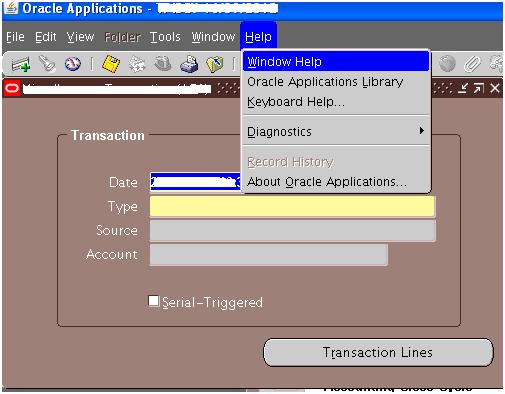
5. Now you can use the UPK to EBS functionality from EBS help menu.


Good Luck ...

Monday, June 23, 2014

R12 Purchase Order Preference Form Errors With "APP-PO-14142: get_po_parameters-10: ORA-01422: exact fetch rows more than requested number of rows"


Hi All ...

I Have got the following error in my R12 upgraded instance:
APP-PO-14142: get_po_parameters-10: ORA-01422: exact fetch rows more than requested number of rows

SELECT count(*) FROM po_document_types;
Right now the select show : 378 rows

Action Plan:
1. Connect /as sysdba
2. Revoke EXEMPT ACCESS POLICY from APPS;
3. Re-connect with APPS user and rerun SELECT count(*) FROM po_document_types;
4. Your issue would be resolved if this returns zero records.
5. Re-check the issue.

Good luck ...

Tuesday, June 10, 2014

Adcfgclone on DB tier fail with ouicli.pl

Hi All ... 

Here the issue that I have found during the clone DB tier:

AutoConfig could not successfully execute the following scripts:

    Directory: /clone/oracle/product/11.2.0/perl/bin/perl -I /clone/oracle/product/11.2.0/perl/lib/5.8.3 -I /clone/oracle/product/11.2.0/perl/lib/site_perl/5.8.3 -I /clone/oracle/product/11.2.0/appsutil/perl /clone/oracle/product/11.2.0/appsutil/clone

      ouicli.pl               INSTE8_APPLY       255

AutoConfig is exiting with status 1


RC-50013: Fatal: Instantiate driver did not complete successfully.

Action Plan:
1.  Change the DB CONTEXT_FILE PERL5LIB  parameter from 5.8.3 to 5.10.0 
2.  Change the $ORACLE_HOME/appsutil/template/adxdbctx.tmp as well as env file.
3. Run autoconfig on DB node
4. Run adpreclone procedure on DB tier
5. Copy the data to clone instance and rerun adcfgclone.

Good Luck ...

Wednesday, May 21, 2014

Find FND_PROFILE's changed by specific USER

Hi All ...

Here the small sql that will help you to find which FND_PROFILE's were changed by specific USER on your EBS instance.

select fpot.user_profile_option_name , decode(fpov.level_id,10001,'SITE'
          ,10002,'APPLICATION'
          ,10003,'RESPONSIBILITY'
          ,10004,'USER') Profile_Level , fpov.profile_option_value , fpov.last_update_date
          from fnd_profile_options fpo
               , fnd_profile_options_tl fpot
               , fnd_profile_option_values fpov
          where fpo.profile_option_name = fpot.profile_option_name
          and  fpo.profile_option_id  = fpov.profile_option_id
          and fpov.last_updated_by = (select user_id from fnd_user

          where user_name  = '&USERNAME')​

Good Luck ...

Wednesday, April 30, 2014

R12 Restart Apache + Clear Cache Concurrent


Hi All,

Here the step by step guide for creating Concurrent to Restart Apache + Clear Cache in R12 EBS instance.
Hope that it will save your time during upgrade cycles and users tests.

Here we go....

1. Login to EBS with System Administrator responsibility.
2. Go to Concurrent --> Program --> Executable.
Executable : XX_RESTART_APACHE
Short Name : XX_RESTART_APACHE
Application : Your XX Custom Application
Description : Restart Apache
Execution Method : Host
Execution File Name : Restart_Apache

3. Save your changes.
4. Go to Concurrent --> Program --> Define
Program : XX Restart Apache
Short Name : XX_RESTART_APACHE
Application : Your XX Custom Application
Description : Restart Apache
In Executable Section:
Name : XX_RESTART_APACHE
Method : Host
5. Save your changes.
6. Create Restart_Apache.prog under your CUSTOM_TOP/bin directory:

########################################################
#!/bin/ksh

ORIG_CONC_OUTPUT_FILE=$1
COPIES=$2
TITLE=$3

REQUEST_ID=`echo $TITLE | awk -F"." '{ print $NF }'`


LOG_DIR=$APPLCSF/$APPLLOG
OUT_DIR=$APPLCSF/$APPLOUT
LOG_FILE=l${REQUEST_ID}.req
OUT_FILE=o${REQUEST_ID}.out
USER_LOG_FILE=$LOG_DIR/$LOG_FILE # this is the log file that the user see

echo log file is $LOG_DIR
echo out file is $OUT_DIR
echo user log file is $USER_LOG_FILE

$ADMIN_SCRIPTS_HOME/adoacorectl.sh stop 2>&1  $LOG_FILE
sleep 5
$ADMIN_SCRIPTS_HOME/adoacorectl.sh status 2>&1 $LOG_FILE
sleep 5
echo "Before clear cash"
rm -Rf $ORA_CONFIG_HOME/10.1.3/j2ee/oacore/persistence/* >> $LOG_FILE
echo "After clear cash"
$ADMIN_SCRIPTS_HOME/adoacorectl.sh start 2>&1 $LOG_FILE
sleep 5
$ADMIN_SCRIPTS_HOME/adoacorectl.sh status 2>&1 $LOG_FILE
########################################################

7. chmod +x <YOUR CUTOM_TOP>/bin/Restart_apache.prog
8. Create soft link 
ln -s $FND_TOP/bin/fndcpesr <YOUR CUTOM_TOP>/bin/Restart_apache

9. Add you concurrent to request group under the System Administrator.

That's all...
Good Luck ... 


Thursday, April 24, 2014

How to update patch adwork process manually


Hi All,

Here the way to update patch adwork process manually when the process is stuck during the patch apply:

1. Update the worker status :
UPDATE applsys.fnd_install_processes
SET status = 'F'   --- F = Failed
WHERE worker_id = 1 --- Number of stuck adworker process

2. Find the SID and the SERIAL# of stuck adworker process

select sid,serial#  from v$session where sid=xxx;

3. Kill the session
alter system kill session 'xxx,yyy';

Useful documentation:
Inadvertently Closing a Session of Adpatch Causes 'Unable to find job ' Error (Doc ID 257505.1)

Good Luck ....

Sunday, March 31, 2013

How to run mod_plsql with Release 12 (unsupported)


Hi All,

We just finished the big upgrade project for R12.
One of the problem was how to migrate the mod_plsql procedures from 11i to R12.


With Release 12, mod_plsql is no longer Supported or recommended with eBiz and is disabled by default.   This is explained in the Blog article "Mod_plsql Not Supported in Release 12" (http://blogs.oracle.com/stevenChan/entry/new_whitepaper_mod_plsql_and_e_1)    

Some customers have not been able to re-implement their Release 11i mod_plsql custom code in OA Framework but still want to migrate to Release 12.  


In this case, the only official suggestion is to implement a standalone OracleAS 10g instance running mod_plsql which then interfaces to Rel 12.  This proposed solution is still considered a temporary workaround until the customer is able to re-implement customizations in OA Framework, which is the only Supported solution.     Option A below lists the steps to implement this option.  Option B is also listed but is not currently considered a good solution for Production environments as it introduces security risks.


If you still decided to do that, here the action plan:


A.  Install standalone AS10g instance, or utilise existing instance if available


This can be Infrastructure (SSO) or Middle Tier (Portal) installation as both types will have mod_plsql already installed.

1.  Create new DAD entry

a.  Login to Application Server Control and select the "HTTP_Server" link under "System Components"
b.  Select "Administration" link then "PL/SQL Properties"
c.  Under the DADs section you have the button to "Create" new DAD entry
d.  Select DAD type of "General"  and enter the following information
            DAD Name or Location         For example "/pls/r12vis"
            Username                             Enter "APPS"
            Password                              Enter APPS user password
            Connect String           For example, myRDBMSHost.domain.com:1521:VIS
            Connect String Format           SIDFormat
            Authentication Mode  Set this to the blank entry (no value)
e.  Click "Apply" button to save these changes

2.  Restart HTTP Server for the changes to take effect

3.  You can then test your change by using the URL as below
            http://myAS10gHost.domain.com:PORT/pls/r12vis/fnd_web.ping
           
This should return the FND_WEB ping output page showing the SYSDATE, DATABASE_VERSION, etc


B.  Re-introduce mod_plsql into Release 12 Apache listener


This is not a recommended option, as it introduces additional security risks to your environment so should only be used for TEST environments as a temporary workaround.

1.  Modify the $ORACLE_CONFIG_HOME/../10.1.3/Apache/Apache/conf/oracle_apache.conf file to add the following lines at the end of the file

            # begin custom
            include "<>/Apache/modplsql/conf/plsql.conf"
            # end custom

where <> is the explicit directory for the $IAS_ORACLE_HOME variable
*** Pay attention, this change will be remove after next autoconfig run

NOTE  - on Microsoft platforms this will be located in a directory location similar to "DRIVE:\<ORACLE_BASE>\inst\apps\<CONTEXT_MACHINE>\ora\10.1.3\Apache\Apache\conf"  For example "E:\oracle\inst\apps\VIS_TESTBOX\ora\10.1.3\Apache\Apache\conf\oracle_apache.conf"

2.  Update the $IAS_ORACLE_HOME/Apache/modplsql/conf/dads.conf file to add an appropriate entry for your Release 12 RDBMS

For Example
            <Location /pls/r12vis>
             SetHandler pls_handler
             Order deny,allow
             Allow from all
             AllowOverride None
             PlsqlDatabaseUsername         apps
             PlsqlDatabasePassword         apps
             PlsqlDatabaseConnectString    myRDBMSHost.domain.com:1521:VIS
             PlsqlDefaultPage              fnd.web.ping
            </Location>

3.  Use dadTool.pl to obfuscate the clear text passwords in the dads.conf file
            perl dadTool.pl -o

4.  Restart HTTP Server for these changes to take effect

5.  You can then test your change by using the URL as below
            http://myRel12Host.domain.com:PORT/pls/r12vis/fnd_web.ping

Additional Note :
Once implemented, you can only launch PLSQL directly via URL if the package/procedure is registered as trusted.  To register PLSLQ processes or procedures you can  go to System Admin Responsibility--> Security--> "Web PL/SQL" in which you can register your own PLSQL.  
Alternatively you can directly update the underlying table
       insert into fnd_enabled_plsql values ('PROCEDURE', 'MY_PROCEDURE_NAME', 'Y', sysdate, 1, sysdate, 1, 1,'');


Good Luck ...

Sunday, January 13, 2013

Hebrew data not shown correct in Oracle Reports with Text format

Hi All,

Here the new issue that was found during the upgrade R11 to R12.1.3.
After the upgrade all reports in Text format not show the Hebrew correct.
The columns are right to left with data left to right.

Here the simple action plan to fix this issue - VPASTA!!!!

1. Log-in to Oracle Application > System Administrator > Install > Viewer Options 
2. Add the following line:
File Format: Text
Mime Type: apps/bidi
Description:  Pasta Viewer for bidi


3. Go to Profile > System and look for "Viewer: Application for Text:
4. Choose the Pasta Viewer for bidi in SITE level.


5. Add the following lines to your custom*.env file or to .bash_profile / .profile


TK_LOCALE="bidi"
export TK_LOCALE

6. Add the following lines to $FND_TOP/reports/<your_file>.prt
nls locale "arabic"
nls datastorageorder "logical"
nls contextuallayout "no"
nls contextualshaping "yes

* You can find the needed prt file according the concurrent name and it's style

7. Re-login with appl user and restart concurrent manager.
$INST_TOP/admin/scrips/adcmctl.sh stop
$INST_TOP/admin/scrips/adcmctl.sh start

Oracle Notes:
How to Setup EBS, VPasta, And Pasta for BIDI Languages [ID 839520.1]
HOW TO CONFIGURE PASTA FOR ARABIC? (Doc ID 816879.1)

Good Luck ...


Thursday, August 16, 2012

Add CUSTOM TOP to R12 via Linux

Hi All

As you already know there is an option to add CUSTOM TOP to R12 via EBS Site Map -> AutoConfig.

Here the 2 ways to do it via Linux.
*** Pay attention : The Application need to be created before this action plans.

1. Stop APPL Tier
2. Login with application user to Linux
3. Edit $CONTEXT_FILE. Add the following line in the end of tops list:
<CUSTOM_TOP oa_var="s_customtop" oa_type="PROD_TOP" oa_enabled="FALSE">$APPL_TOP full path /custom/12.0.0</CUSTOM_TOP>

4. Create CUSTOM folder in $APPL_TOP: cd $APPL_TOP; mkdir CUSTOM folder
5. Create the following sub directories ( if need ):

./admin
./admin/sql
./admin/odf
./admin/template
./admin/driver
./forms
./forms/US
./html
./lib
./mds
./mesg
./patch
./sql
./bin
./help
./java
./log
./media
./out
./reports
./reports/US

6. Run AUTOCONFIG in APPL Tier
7. Re-login with application user to Linux and check that the CUSTOM TOP exists: echo $CUSTOM
8. Start APPL Tier

*** Some times this way not working properly after some custom changes and the custom line removed from $CONTEXT_FILE after AUTOCONFIG .So You can use the second action plan : 

1. Stop APPL Tier
2. Login with application user to Linux
3. Go to $AD_TOP/admin/template
4. Backup adxmlctx.tmp  : mv adxmlctx.tmp adxmlctx.tmp_bck
5. Add the following line in the end of tops list:
<CUSTOM_TOP oa_var="s_customtop" oa_type="PROD_TOP" oa_enabled="FALSE" default="%s_at4%%/%custom%/%12.0.0">%s_customtop%</CUSTOM_TOP>
6. Create CUSTOM folder in $APPL_TOP: cd $APPL_TOP; mkdir CUSTOM folder
7. Create the following sub directories ( if need ):

./admin
./admin/sql
./admin/odf
./admin/template
./admin/driver
./forms
./forms/US
./html
./lib
./mds
./mesg
./patch
./sql
./bin
./help
./java
./log
./media
./out
./reports
./reports/US

8. Run AUTOCONFIG in APPL Tier
9. Re-login with application user to Linux and check that the CUSTOM TOP exists: echo $CUSTOM
10. Start APPL Tier

Good Luck ...

Tuesday, August 14, 2012

Required OS Packages for EBS R12 on Oracle Linux 6 and Red Hat Enterprise Linux 6

Hi All

Here the list for Required OS Packages ( rpm's ) for EBS R12 on Oracle Linux 6 and Red  Hat Enterprise Linux 6.

Pay attention:  Only the latest version of EBS 12.1.3 with Database 11.2.0.3 can be installed there  (see the Oracle certifications for more details).


*** You can also use the following note to install the needed RPM's

EBS R12 Pre-Install RPM Available for Oracle Linux 5 and 6


GA (6.0) or higher of Oracle Linux 6 is required
GA (6.0) or higher of Red Hat Enterprise Linux (RHEL) 6 is required
The following packages (or versions of packages) are not part of the OS distribution media and must be downloaded separately (from http://oss.oracle.com/projects/compat-oracle/files/Enterprise_Linux/) for both Oracle Linux 6 and RHEL 6 and installed manually:
  • openmotif21-2.1.30-11.EL6.i686 (32-bit)1
  • xorg-x11-libs-compat-6.8.2-1.EL.33.0.1.i386 (32-bit)
The following packages must be installed from the Oracle Linux 6 or RHEL 6 distribution media:
  • binutils-2.20.51.0.2-5.11
  • gcc-4.4.4-13.el16.x86_64
  • gcc-c++-4.4.4-13.el16.x86_64
  • glibc-2.12-1.7.el6.i686 (32-bit)
  • glibc-2.12-1.7.el6.x86_64
  • glibc-common-2.12-1.7.el6.x86_64
  • glibc-devel-2.12-1.7.el6.i686 (32-bit)
  • glibc-devel-2.12-1.7.el6.x86_64
  • libgcc-4.4.4-13.el6.i686
  • libgcc-4.4.4-13.el6.x86_64
  • libstdc++-devel-4.4.4-13.el6.i686
  • libstdc++-devel-4.4.4-13.el6.x86_64
  • libstdc++-4.4.4-13.el6.i686
  • libstdc++-4.4.4-13.el6.x86_64
  • make-3.81-19.el6.x86_64
  • gdbm-1.8.0-36.el6.i686
  • gdbm-1.8.0-36.el6.x86_64
  • libXp-1.0.0-15.1.el6.i686
  • libXp-1.0.0-15.1.el6.x86_64
  • libaio-0.3.107-10.el6.i686
  • libaio-0.3.107-10.el6.x86_64
  • libgomp-4.4.4-13.el6.x86_64
  • sysstat-9.0.4-11.el6.x86_64
  • util-linux-ng-2.17.2-6.el6.x86_64
  • unzip-5.52-3.0.1.el5.x86_642
  • compat-libstdc++-296-2.96-144.el6.i686
  • compat-libstdc++33-3.2.3-69.el6.i686
Additionally, the following RPMs are required for the database tier running 11gR2 (users must upgrade the bundled 11gR1 DB to 11gR2 either before or after installing 12.1) on the database tier:
  • compat-libstdc++-33-3.2.3-69.el6.x86_64
  • elfutils-libelf-devel-0.148.1-el6.x86_64
  • kernel-uek-headers-2.6.32-100.28.5.el6.x86_64
  • libaio-devel-0.3.107-10.el6.x86_64
  • unixODBC-2.2.14-11.el6.i686
  • unixODBC-devel-2.2.14-11.el6.i686
  • unixODBC-2.2.14-11.el6.x86_64
  • unixODBC-devel-2.2.14-11.el6.x86_64
  • xorg-x11-utils-7.4-8
Note:
1: The openmotif package version must be 2.1.30 (for example, openmotif-2.3.3-1 is not supported).
2: This unzip package (available from EL 5 distribution) is only required for purposes of running Rapid Install to unzip the required EBS files as part of the installation and should be reverted after the install of EBS. Alternatively, users can backup the existing unzip 6.0 in /usr/bin, copy the unzip 5.5 from the EBS staging directory to /usr/bin for purposes of installing EBS, and then restore the unzip 6.0 when done.

Good Luck ... 

Wednesday, May 30, 2012

Discoverer Plus from EBS R12.1.3 - java.lang.NullPointerException

Hi All


Here the new issue that I found after upgrade to EBS R12.1.3.
We have a lot of functions that helps users to open the discoverer reports per organization via Discoverer Plus. After we finished upgrade and updated the ICX: Discoverer Launcher and ICX: Discoverer Viewer Launcher profiles I found very strange issue:
When User (that not an EUL owner and Discoverer Administrator) try to open the discoverer via EBS function , he get an error java.lang.NullPointerException.
After restarting the APPL Tier and clear the cache I started to get the FULL error:


Exception found : 
java.lang.NullPointerException
at oracle.apps.fnd.util.URLEncoder.encode(URLEncoder.java:60)
at _OracleOasis._jspService(_OracleOasis.java:662)
at com.orionserver.http.OrionHttpJspPage.service(OrionHttpJspPage.java:59)
at oracle.jsp.runtimev2.JspPageTable.service(JspPageTable.java:462)
at oracle.jsp.runtimev2.JspServlet.internalService(JspServlet.java:594)
at oracle.jsp.runtimev2.JspServlet.service(JspServlet.java:518)
at javax.servlet.http.HttpServlet.service(HttpServlet.java:856)
at com.evermind.server.http.ServletRequestDispatcher.invoke(ServletRequestDispatcher.java:713)
at com.evermind.server.http.ServletRequestDispatcher.forwardInternal(ServletRequestDispatcher.java:370)
at com.evermind.server.http.ServletRequestDispatcher.unprivileged_forward(ServletRequestDispatcher.java:259)
at com.evermind.server.http.ServletRequestDispatcher.access$100(ServletRequestDispatcher.java:51)
at com.evermind.server.http.ServletRequestDispatcher$2.oc4jRun(ServletRequestDispatcher.java:193)
at oracle.oc4j.security.OC4JSecurity.doPrivileged(OC4JSecurity.java:284)
at com.evermind.server.http.ServletRequestDispatcher.forward(ServletRequestDispatcher.java:198)
at com.evermind.server.http.EvermindPageContext.forward(EvermindPageContext.java:395)
at _RF._jspService(_RF.java:225)
at com.orionserver.http.OrionHttpJspPage.service(OrionHttpJspPage.java:59)
at oracle.jsp.runtimev2.JspPageTable.service(JspPageTable.java:379)
at oracle.jsp.runtimev2.JspServlet.internalService(JspServlet.java:594)
at oracle.jsp.runtimev2.JspServlet.service(JspServlet.java:518)
at javax.servlet.http.HttpServlet.service(HttpServlet.java:856)
at com.evermind.server.http.ResourceFilterChain.doFilter(ResourceFilterChain.java:64)
at oracle.apps.jtf.base.session.ReleaseResFilter.doFilter(ReleaseResFilter.java:26)
at com.evermind.server.http.EvermindFilterChain.doFilter(EvermindFilterChain.java:15)
at oracle.apps.fnd.security.AppsServletFilter.doFilter(AppsServletFilter.java:318)
at com.evermind.server.http.ServletRequestDispatcher.invoke(ServletRequestDispatcher.java:621)
at com.evermind.server.http.ServletRequestDispatcher.forwardInternal(ServletRequestDispatcher.java:370)
at com.evermind.server.http.HttpRequestHandler.doProcessRequest(HttpRequestHandler.java:871)
at com.evermind.server.http.HttpRequestHandler.processRequest(HttpRequestHandler.java:453)
at com.evermind.server.http.AJPRequestHandler.run(AJPRequestHandler.java:313)
at com.evermind.server.http.AJPRequestHandler.run(AJPRequestHandler.java:199)
at oracle.oc4j.network.ServerSocketReadHandler$SafeRunnable.run(ServerSocketReadHandler.java:260)
at com.evermind.util.ReleasableResourcePooledExecutor$MyWorker.run(ReleasableResourcePooledExecutor.java:303)
at java.lang.Thread.run(Thread.java:619)


Cause
The e-BS system profile option "Java Look and Feel" (short name FND_LOOK_AND_FEEL) is null (i.e. it is not set).
Regarding the URL, any strings specified by the profile option will be added to the URL.
In both cases, it is also possible that the file appsweb.cfg changes the Java Look and Feel.
Discoverer has also been known (in 11i at least) to benefit if the profile option Self Service Accessibility Features is set to Standard Accessibility.


Solution
The fix for this issue is in 11782912 Patch . Users who have applied this patch should not experience the issue. 
Workaround for users who cannot apply the patch:
1. Ensure that the value of the Java Look and Feel profile option FND_LOOK_AND_FEEL is not null, i.e. set it to a valid value from the List of Values.
2. If the URL changes, ensure that the profile option does not include the string &LookAndFeelName=OracleLookAndFeel . If it does, it will be added from here into the URL. 
3. In either case, ensure that the e-BS configuration file appsweb.cfg does not update the profile option or include the string &LookAndFeelName=OracleLookAndFeel . 


Useful documentation:
Java Look and Feel settings cause java.lang.NullPointerExcerption or java.lang.NoSuchFieldError when trying to start Discoverer from e-Business Suite [ID 554817.1]

Good Luck ...