Thursday, July 16, 2015

How to collect Discoverer Plus and Viewer statistics


Hi All .

Here the step by step How to collect Discoverer Plus and Viewer statistics.

1.Navigate to the 'util' directory and edit the pref.txt file:

-- For 4i, it is $ORACLE_HOME/discwb4/util
-- For 10g, it is $ORACLE_HOME/discoverer/util
-- For 11g, it is:  $ORACLE_HOME/discoverer/config/pref.txt
 
$ORACLE_HOME refers to the top level AS home (Linux/Unix Example - /do2/Oracle/Middleware/as_1).  Your actual ORACLE_HOME name may differ, but should follow similar directory/path.
2.Navigate to the [Application] section:
3. Set the parameters

QPPEnable = 1
QPPCreateNewStats = 1 

(Although QPPCreateNewStats is not available by default in 11g, it still applies to 11g as well)

4. Save the pref.txt file.
5. Now we need to update the preference registry file:

-- For 4i and 10g, Unix/Linux, run: ./applypreferences.sh
-- For 4i and 10g, Windows run: applypreferences.bat
-- For 11g, Unix/Linux, run: $ORACLE_INSTANCE/Discoverer/Discoverer_asinst_1/util/applypreferences.sh
-- For 11g, Windows, run: $ORACLE_INSTANCE\Discoverer\Discoverer_asinst_1\util\applypreferences.bat

$ORACLE_INSTANCE refers to the instance home in the WLS/Discoverer home (Example - /do2/Oracle/Middleware/asinst_1).  Your actual ORACLE_INSTANCE may differ, but should follow similar directory/path.
Your ORACLE_INSTANCE may also differ if your environment includes multiple instances as may occur with clustered environments.

These settings will take effect for new sessions launched, but not existing sessions.
You may optionally, restart the Discoverer to force/kill all existing sessions.

P.S If you are using the Oracle BI Discoverer Plus Version 11.1.1.6.0/11.1.1.4.0 , you need to apply patch 11784475 (DISCO 11G PLUS/VIEWER QUERY STATS NOT WORKING IN APPS 12I EUL/64 BIT OS)

Good Luck ...

Monday, June 29, 2015

How to re-open EXPIRED & LOCKED user with the same password


Hi All ...

Here the fast way to re-open the DB users when it in  EXPIRED & LOCKED status and you don't want to change the password and not remember the old one.

Run the following with "/as sysdba" :

1. Change the FAILED_LOGIN_ATTEMPTS profile to UNLIMITED.
alter profile default limit failed_login_attempts unlimited password_life_time unlimited;

2. Sql to change the status from LOCKED to OPEN  (copy the result and run in sqlplus).

select 'alter user '|| username || ' account unlock;' 
from dba_users where account_status = 'LOCKED'

3. Sql to remove the expired status (copy the result and run in sqlplus).
select 'alter user ' || su.name || ' identified by values' || ' ''' || spare4 || ';' || su.password || ''';'
from sys.user$ su join dba_users du on ACCOUNT_STATUS like 'EXPIRED%'
and su.name = du.username;


Good Luck ...

Thursday, June 25, 2015

UPK to EBS R12 - Step By Step.

Hi All

Here the step by step guide how to connect the Oracle EBS R12 to use UPK help.

1. Add the UPK to CUSTOM.pll file:
• Backup the CUSTOM.plx before installation.
• Copy the attached ODPN.pll file to $AU_TOP/resource.
• Compile the ODPN.pll using:
frmcmp_batch userid=apps/apps module=ODPN.pll module_type=LIBRARY    
• make sure that the ODPN.plx was created.
• Convert the CUSTOM.pll to text file (ECM_CUSTOM.pld)
frmcmp_batch userid=apps/apps module= CUSTOM.pll module_type=LIBRARY script=Yes
• Open the CUSTOM.pld
• Add the fillowing line at the begining of the file:
.attach LIBRARY ODPN END NOCONFIRM
right after the last attached pll
Add the following at the end of the Event procedure (before the line with  "end event;"), save and close the file:
/*************** UPK Module ****************************************/
gkod_event(event_name, 'SPECIAL20');
/*******************************************************************/
• Convert the ECM_CUSTOM.pld from text file to pll file (binary) using:
frmcmp_batch userid=apps/apps module= CUSTOM.pld module_type=LIBRARY parse=Yes (make sure that the CUSTOM.pll was created).
• Compile the CUSTOM.pll using:
frmcmp_batch userid=apps/apps module= CUSTOM.pll module_type=LIBRARY (make sure that the CUSTOM.plx was created).

2. Copy the content of directory - Create Requisition Publish\Publishing content\PlayerPackage to $INST_TOP/portal/upk (or use windows shared directory so you need to mount directory and create a soft link 
cd $INST_TOP/portal
ln -s <shared directory>  upk ).

3. Login to Oracle Application and update Applications Help Web Agent profile with the following string:

http://<hostname>:<port>/upk/oracle/hemi/oracle_gateway.html

4. Restart Apache service
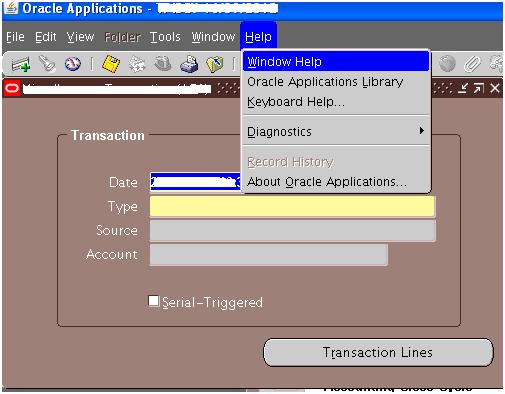
5. Now you can use the UPK to EBS functionality from EBS help menu.


Good Luck ...